For a full walkthrough of the Learning Management Portal, click here. From the Learning Management Portal Home Page:
Edit an individual user profile:
- Click "Users" from the navigation menu. (Login if prompted.)
- Search for users by name, email, profession, or employee id or click "Show all Users" to see a list of all active users.
- Click on a user and click "Edit Profile".
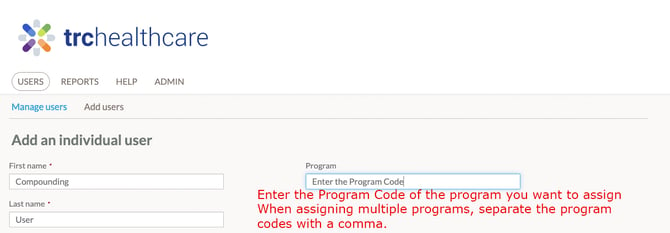
- Enter the Program Code corresponding to the Program you want to assign to the user.
- Multiple programs can be assigned by separating the Program Codes with a comma:
- Click "Save Changes" when finished.
- The user will have the Program Codes added to their user profile and will see the new program assignments the following day.
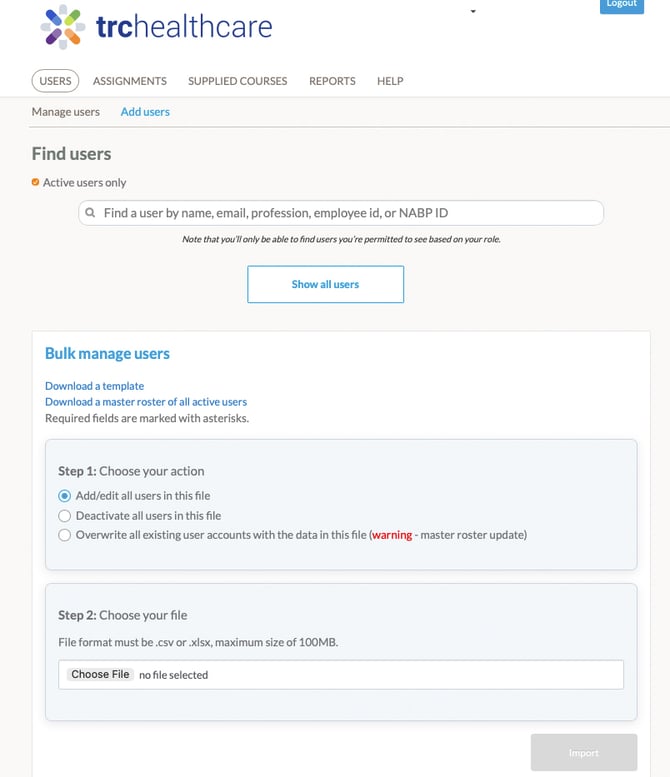
Assign Programs to existing users by uploading a roster.
- Click "Users" from the navigation menu. (Login if prompted.)
- Click "Bulk manager users".
- Click "Download a master roster of all active users".
- For each applicable user, add the appropriate Program Code(s) in the "Program" column in the spreadsheet.
- Save the spreadsheet.
- In "Step 1: Choose your action", ensure that "Add/Edit all users in this file" option is selected.
- Note: Users whose records are not being updated may be removed from the file if desired.
- Do not select the "Overwrite all existing user accounts with the data in this file (warning - master roster update)" option for this process.
- In "Step 2: Choose your file", click "Choose file" and select the spreadsheet saved above.
- Click "Import".
- The updated users will have the Program Codes added to their user profiles and will see the new program assignments the following day.