
From the Learning Management Portal Home Page
Importing New Users
- Click "Users" from the navigation menu. (Login if prompted.)
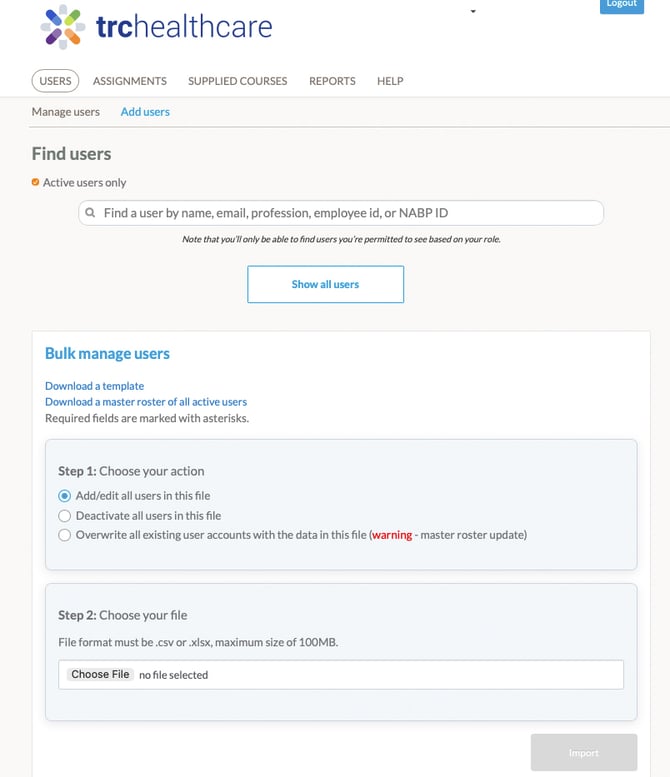
- Click "Bulk manage users".
- Click "Download a template" to download the import spreadsheet template. This template must be used to upload a list of new users.
- Update the spreadsheet with the new users. Fields marked by an asterisk (*) are required.
- Save the spreadsheet.
- The default required fields are (other fields may be marked as required by the enterprise):
- First Name
- Last Name
- Employee ID (this must be unique for all users in the enterprise)
- Profession (see the list of available professions and the allowable abbreviations below)
- In "Step 1: Choose your action", ensure that "Add/Edit all users in this file" is selected.
- In "Step 2: Choose your file", click "Choose file" and select the spreadsheet saved above.
- Click "Import".
- A message will display stating your roster import is in progress.
- Check the status of the import by clicking "Reports" from the navigation menu.
- Click the "Bulk user import activity" report.
- Click "Run report". A list of imported files will display.
- Click on the file that was just imported to view the status of the import.
Professions List:
| Profession Full Name | Abbreviation | Notes |
| Advanced Practice Registered Nurse | NPPA | Includes PA, NP, CNM, CRNA, CNA, and CNS |
| Behavioral Health | SW | Includes Social Workers/Therapists |
| Certified Nursing Assistant | CNA | |
| Dental Assistant | DA | |
| Dental Hygienist | RDH | |
| Dentist | DDS | |
| Dietitian | DIET | |
| LPN/LVN | LPN | |
| Medical Assistant | MA | |
| Other | OS | |
| Pharmacist | PH | |
| Pharmacist Technician | PT | |
| Physician – DO | DO | |
| Physician – MD | MD | |
| Physician Assistant | PA | |
| Psychologist | PSY | |
| Registered Nurse | RN | |
| Rehabilitation and Therapy | RTH | Includes OT, OTA, PT, and PTA |
| Student Pharmacist | SPH |