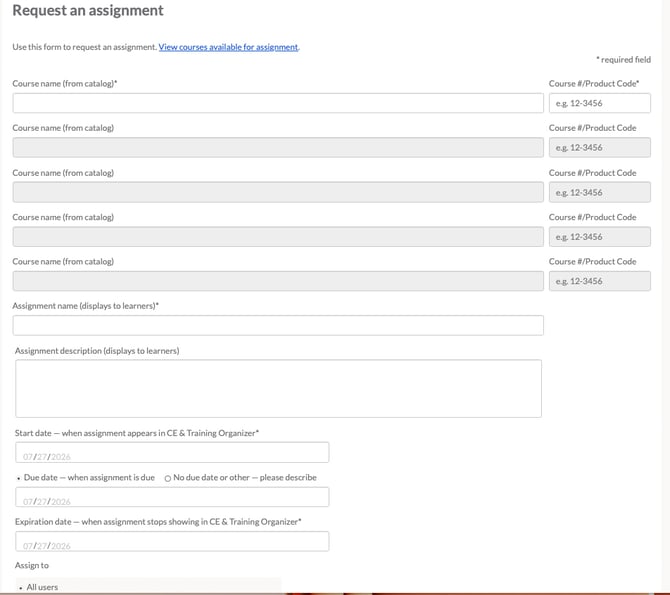
LMP Administrators can request courses from the products/libraries the enterprise subscribes to be assigned to all or a subset of users.
From the Learning Management Portal Home Page
- Click "Assignments" from the navigation menu. (Login in prompted.)
- Complete the "Request an assignment" form.
- To view a list of courses available for assignment, click the "View courses available for assignment" link.
- On the Course List page, use the drop down selection to optionally filter the course list by specific professions.
- Click "Run Report". Search the report on screen for a specific course name or export the course list to Excel for review.
- Enter the full Course Name and the Course ID number onto the form. Enter one course per line.
- Enter the Assignment Name as it should be displayed to learners.
- Enter an Assignment Description as it should be displayed to learners.
- Enter a Start Date. When should the assignment appear in the CE & Training Organizer.
- Due Dates are option. Enter a Due Date or specify No Due Date. Due dates are when the learner should have the assignment completed by.
- Enter an Expiration Date. When the assignment should no longer appear in the CE & Training Organizer.
- Note: The due date and the expiration date do not need to be the same.
- Determine which learners should receive the assignment. Assignments can be made based on:
- All users
- Profession
- A custom field present in the enterprise roster.
- Add any comments for TRC Staff.
- Click "Submit".