
From the Learning Management Portal Home Page
- Click "Users" from the navigation menu. (Login if prompted.)
- Click "Show all users".
- A list of all active users will display. To see all active and inactive users, uncheck the box next to "Active users only".
- The default display includes a limited number of columns. To show more columns, click the "View/Hide Columns" drop down and check the box next to the additional columns to display. Click "Ok".
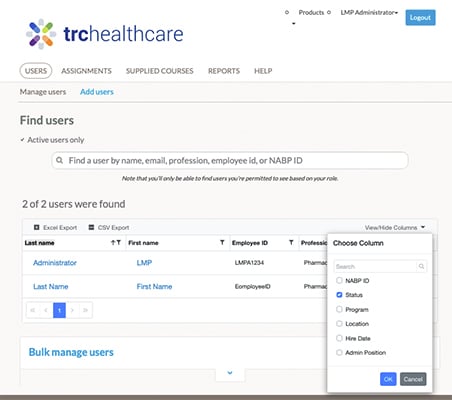
- Click "Excel Export" or "CSV Export" to export the current view of the roster. Only the columns selected will be included in the export.