LMP Administrators can run reports that look at completions by course or by learner. A learner transcript of completions can also be generated.
From the Learning Management Portal Home Page
- Click "Reports" from the navigation menu. (Login in prompted.)
- Click on a report.
Course Completions Report
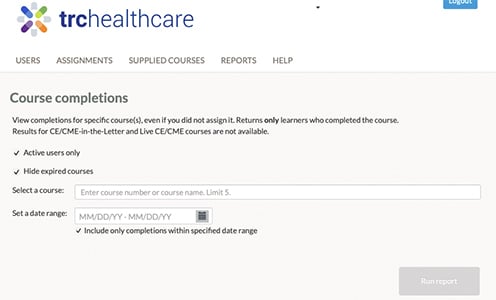
The Course Completions report allows LMP Administrators to view completions for specific course(s), including courses not part of an Assignment. The report returns only those learners that completed the course.
- Click on the "Course Completions" report.
- Only Active users are included by default. To view all active and inactive users, uncheck the "Active users only" checkbox.
- Only Active courses are included by default. To select all active and expired courses, uncheck the "Hide expired courses" checkbox.
- In the "Select a course" field, begin typing the name or course ID of a course. A filtered list will display. Select a course. Up to five (5) courses may be included.
- Select a date range for the course completion
- Click "Run Report".
- The resulting list display can be viewed online or click on an export format (Excel, CSV, or PDF) to export the report results.
User Completions Report
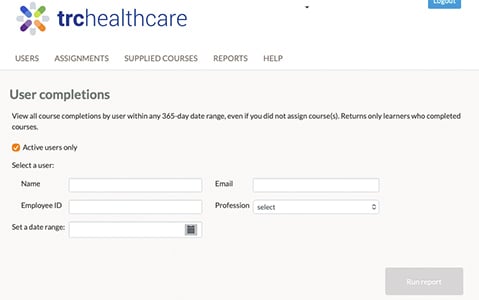
The User Completions report allows LMP Administrators to view all course completions by any learner within any 365-day period, including courses that including courses not part of an Assignment. The report returns only those learners that completed courses.
- Click on the "User Completions" report.
- Only Active users are included by default. To view all active and inactive users, uncheck the "Active users only" checkbox.
- Enter a learners name, email, or employee ID, or
- Select a profession to look at all learners with a specific profession.
- Select a date range.
- Click "Run report".
- The resulting list display can be viewed online or click on an export format (Excel, CSV, or PDF) to export the report results.
Transcript Report
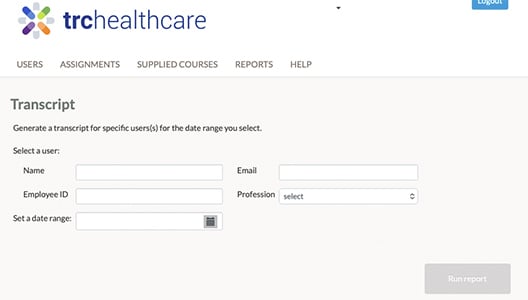
The Transcript report allows LMP Administrators to generate a transcript for a specific learner for a specified date range.
- Click on the "Transcript" report.
- Enter a learners name, email, or employee ID, or
- Select a profession to look at all learners with a specific profession.
- Select a date range.
- Click "Run report".
- The resulting list display can be viewed online or click on an export format (Excel, CSV, or PDF) to export the report results.