LMP Administrators have three assignment reports available; Assignment Overview, Assignment Status, and Assignment Status with Course Details.
From the Learning Management Portal Home Page
- Click "Reports" from the navigation menu. (Login in prompted.)
- Click on a report.
Assignment Overview Report
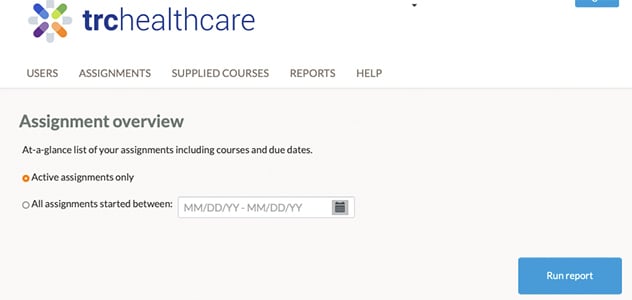
The Assignment Overview report provides an at-a-glance list of the Enterprise's assignments including the courses included in the assignments, due dates (if applicable), expiration dates, and details on the audience for the assignment.
- Click the "Assignment overview" report.
- Only active assignments are included by default. To view all active and inactive assignments, uncheck the "Active assignments only" box.
- Optionally, enter a date range for active assignments based on the assignment start date.
- Click "Run report".
- The resulting list display can be viewed online or click on an export format (Excel, CSV, or PDF) to export the report results.
Assignment Status Report
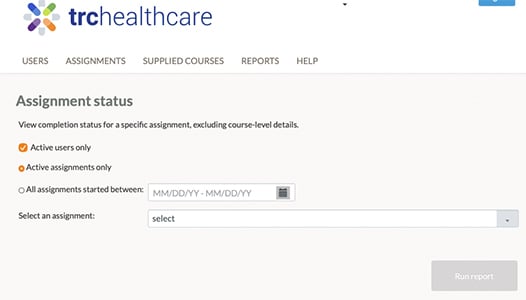
The Assignment Status report provides the completion status for a specific assignment by user.
- Click the "Assignment status" report.
- Only Active users are included by default. To view all active and inactive users, uncheck the "Active users only" checkbox.
- Only Active Assignments are included by default in the "Select an assignment" drop down list. To include active and inactive assignments, uncheck the "Active assignments only" checkbox.
- Optionally, enter a date range for active assignments to filter the "Select an assignment" list further.
- Choose an assignment to view from the "Select an assignment" from the drop down list.
- Click "Run report".
- The resulting list display can be viewed online or click on an export format (Excel, CSV, or PDF) to export the report results.
Assignment Status with Course Details Report
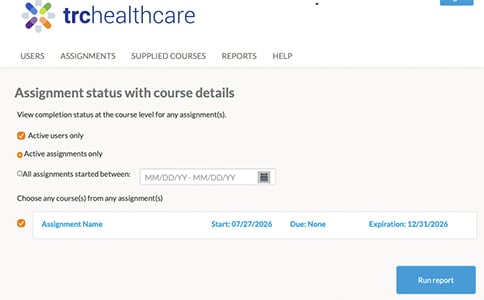
The Assignment Status with Course Details report provides the completion status for a specific assignment, including the courses included in the assignment, by user.
- Click the "Assignment status with course details" report.
- Only Active users are included by default. To view all active and inactive users, uncheck the "Active users only" checkbox.
- Only Active Assignments are included by default in the "Select an assignment" drop down list. To include active and inactive assignments, uncheck the "Active assignments only" checkbox.
- Optionally, enter a date range for active assignments to filter the "Select an assignment" list further.
- Choose an assignment to view by checking the box next to the assignment.
- All the courses included in the assignment will be selected by default.
- Click "Run report".
- The resulting list display can be viewed online or click on an export format (Excel, CSV, or PDF) to export the report results.