From the Learning Management Portal Home Page:
- Click "Users" from the navigation menu. (Login if prompted.)
- Search for users by name, email, profession, or employee id or click "Show all Users" to see a list of all active users.
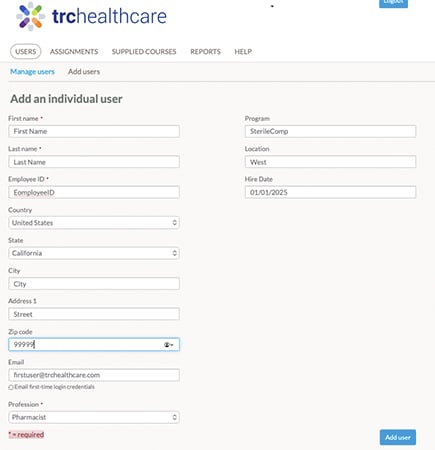
- Click "Add users" from the navigation.
- Complete the add user form. Be sure to fill in all fields marked with a red * as those are required fields.
- Add the appropriate values for any custom fields that have been created.
- Check the "Email first-time log in credentials" to email the user their information.
- Click "Add User".
- A message will display indicating the user has been created.
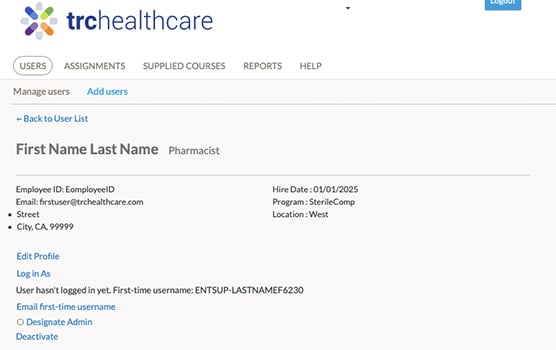
Reviewing a user record.
- Click "Manage user" from the navigation.
- In the search area, enter the name of the user.
- Click on the name of the user in the list to view the user's details.
- On this screen, you will be able to:
- Edit the user profile.
- Log in as the user.
- Email the user their first-time username.
- Designate the user as an LMP Administrator.
- Deactivate the user.